 MUT


Back to the home page
MUT Inspector features
From BOM import to release for ERP. Explore the configurable checks, viewers and traceability tools in the Windows edition.
BOM import and mapping
- Import Excel (.xlsx, .xls) and CSV bills of materials, including CAD and ERP exports. Use a sample BOM to identify and map its headers.
- Set up item code, position, description, material, quantity and revision. Add company fields such as treatment, finish and supplier, plus weight and thumbnail.
- Choose display names, visibility, required fields and column order. Add or remove company and optional fields.
- Read embedded thumbnails when available, preserve text codes and reconstruct hierarchy from item positions and parent–child relationships.
- Review local and rolled-up quantities, distinct codes and occurrences. Distinguish repeated rows, subassemblies and hierarchy levels.

Company categories and rules
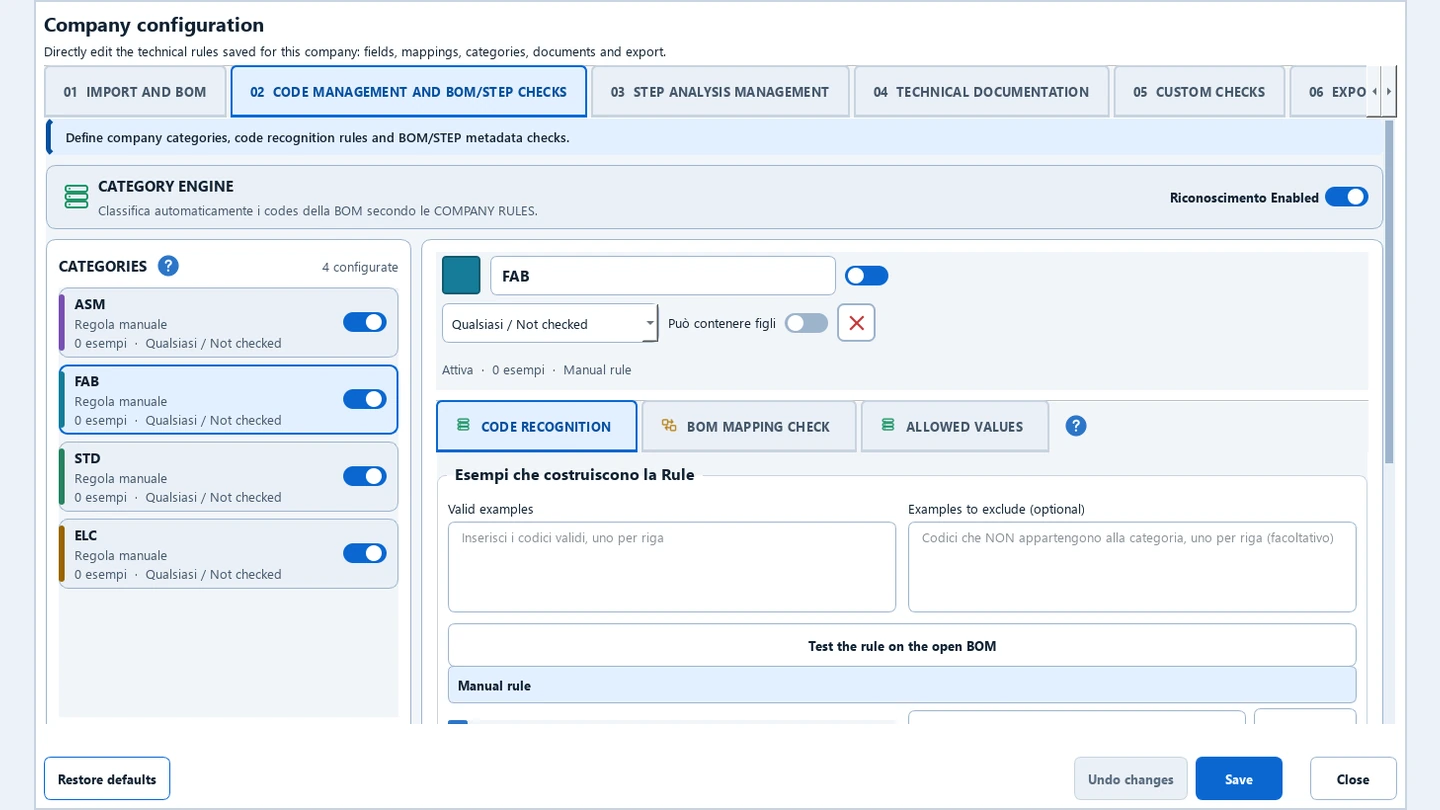
- Create, duplicate, rename, colour and enable categories. Set priority, CAD type and whether a category can have children.
- Build code rules from valid and excluded examples or use regular expressions. Test recognition against the open BOM.
- Set checks and allowed values by category, with separate criteria for unclassified items.
- Check required fields, code formats, inconsistent duplicates, hierarchy, quantities, materials, weights and revision formats according to active rules.
- Choose numeric, alphabetic or list-based revision standards and test document naming conventions.
- Build conditional checks using BOM fields, STEP metadata, PDF title blocks and document presence. Combine all or any conditions, text and numeric operators, ranges, lists and patterns.
- Test rules on open data, set a specific message and select blocking, warning or not required where applicable.
BOM–STEP comparison
- Import the STEP assembly (.step, .stp) and match parts and subassemblies by code.
- Identify codes present in only one file, mismatched or incomparable quantities and discrepancies in part, assembly or hierarchy structure.
- Check product ID against component name. Select controlled automatic matching, product ID or component name and configure descriptive names.
- Set separate outcomes for coded and unclassified items. Compare description, material and revision where available, according to category rules.
- Review component matches, STEP quantities and BOM totals side by side.

Technical documents and title blocks
- Search configured folders and subfolders for PDF, DWG, DXF and STEP files. Choose required formats by category.
- Match files to parts, subassemblies or the root assembly by code and revision. Test paths and find missing files, ambiguous publications and revision mismatches.
- Use sample PDFs to locate title-block cells on supported sheet formats. Check code, description, material, treatment, revision and weight when configured.
- Choose comparison sources and category exceptions. For example, require a treatment for an aluminium part and highlight the PDF cell in red when the violation can be located.
- Browse PDFs by page, zoom and fit. View DWG and DXF drawings and available layouts in the built-in viewer or open the associated app.
- Measure distances, horizontal and vertical offsets, angles, radii and diameters on vector DWG and DXF. Use endpoint, midpoint, centre, quadrant, intersection and perpendicular snaps, units and calibration.
STEP viewer
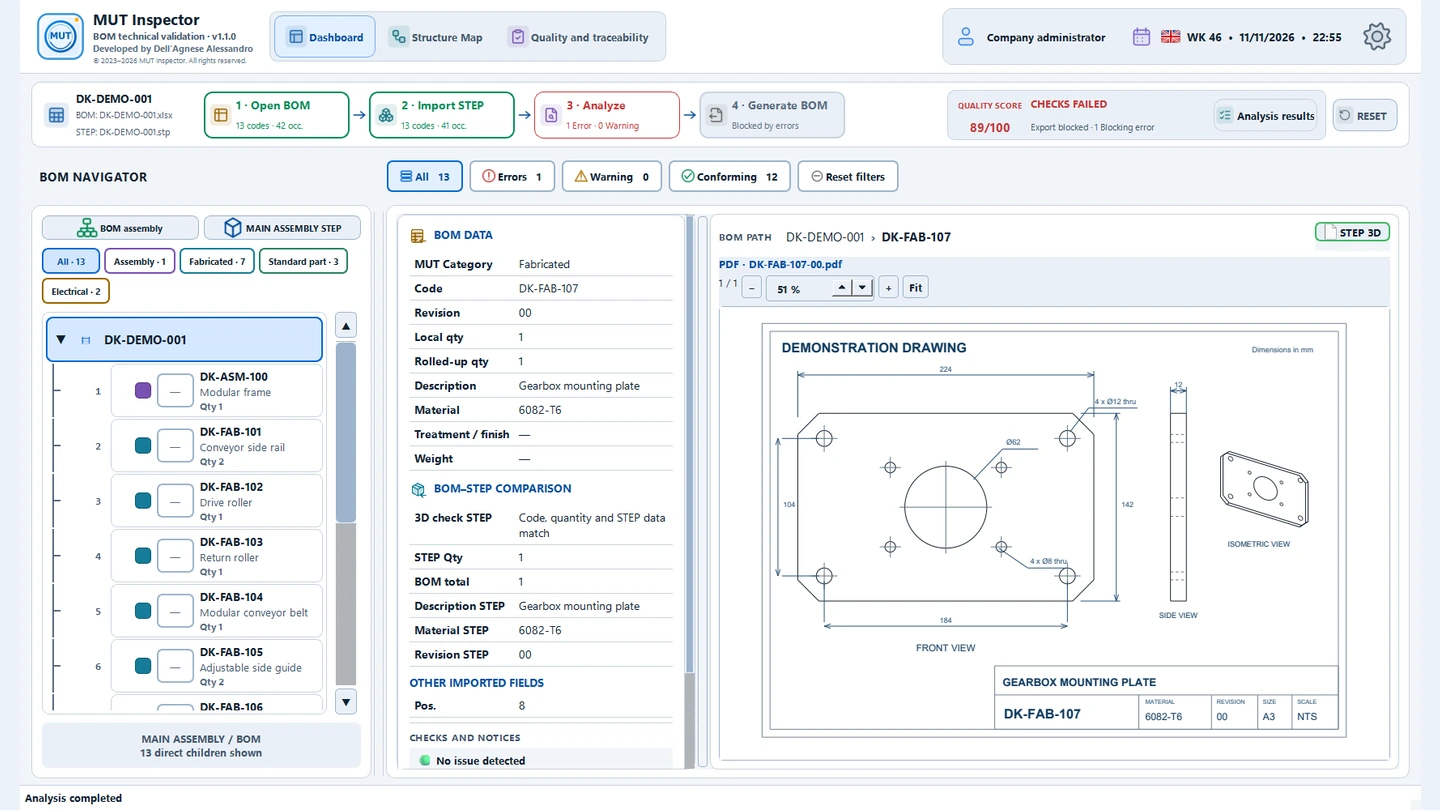
- Inspect individual parts, subassemblies and the complete assembly with STEP geometry, BOM path and overall X, Y and Z dimensions.
- Orbit, pan, zoom and fit the model, align the view to a face and use the ViewCube, orthogonal view roll, XYZ triad and SpaceMouse support.
- Switch between STEP, category and analysis colours. Change the display mode, identify codes on hover and select components to open their details.
- Isolate, hide and restore components. Use dynamic sections to inspect the inside of a model.
- Measure with automatic selection, minimum distance between geometries, diameter, radius, centre distance and outer perimeter. Rotate between measurement picks.
- Keep several dimensions, clear them and undo or redo supported operations. Set units, precision and annotation colours.
- Customise background, outlines, selection, mouse controls and cube or triad size. Try the tools on the sample assembly in Settings.
Geometric interference
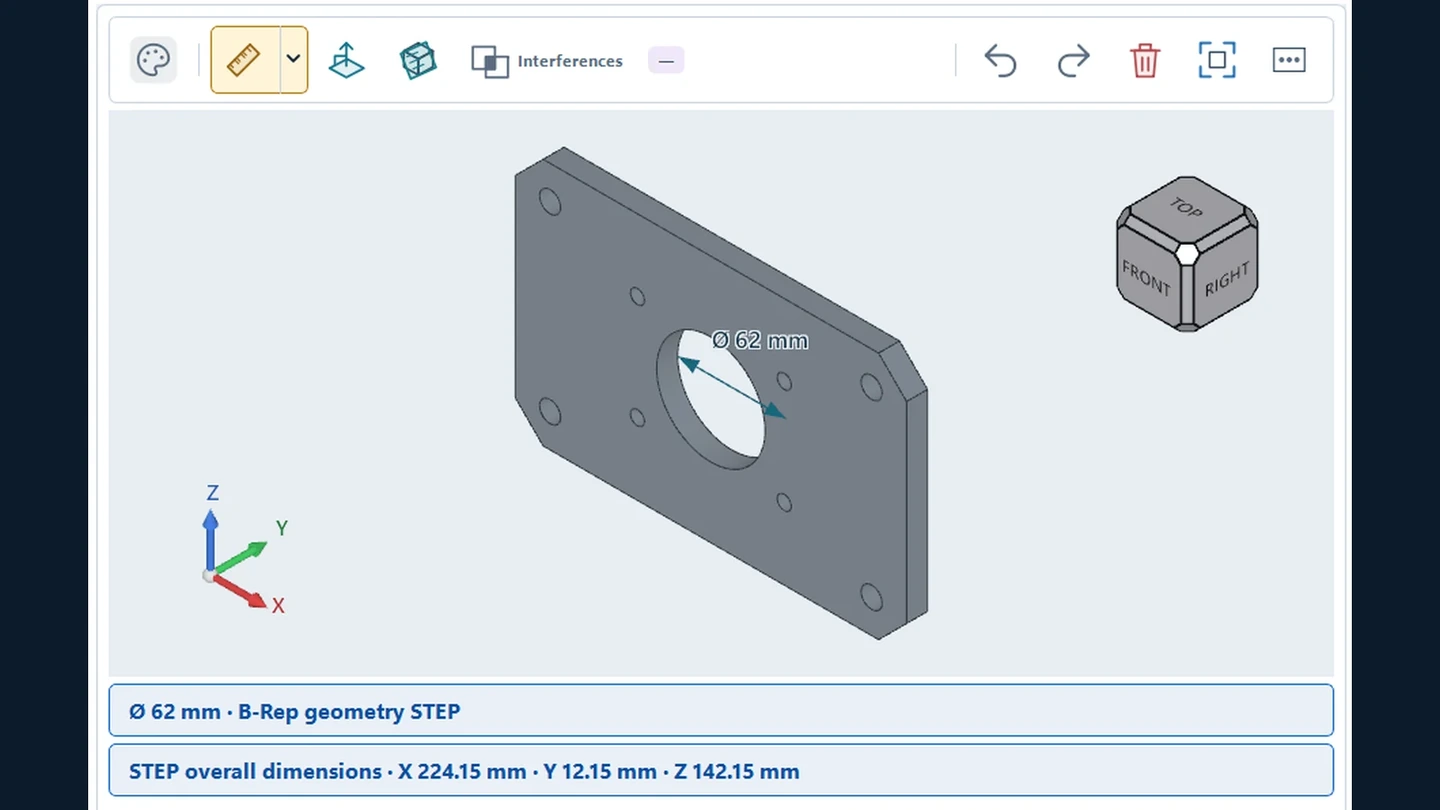
- Calculate STEP overlap volumes. Set the threshold in mm³, time limit and analysis severity, or calculate for inspection only.
- Check the complete geometry or check closed solids with a notice for skipped surfaces. Review partial results and cancel when necessary.
- Inspect occurrence pairs and volumes. Select a pair to frame the affected parts, show the overlap and filter unclassified items.
- Administrators can exclude or restore a pair with a reason. Exclusions are recorded and tied to the STEP version.
Dashboard and structure map
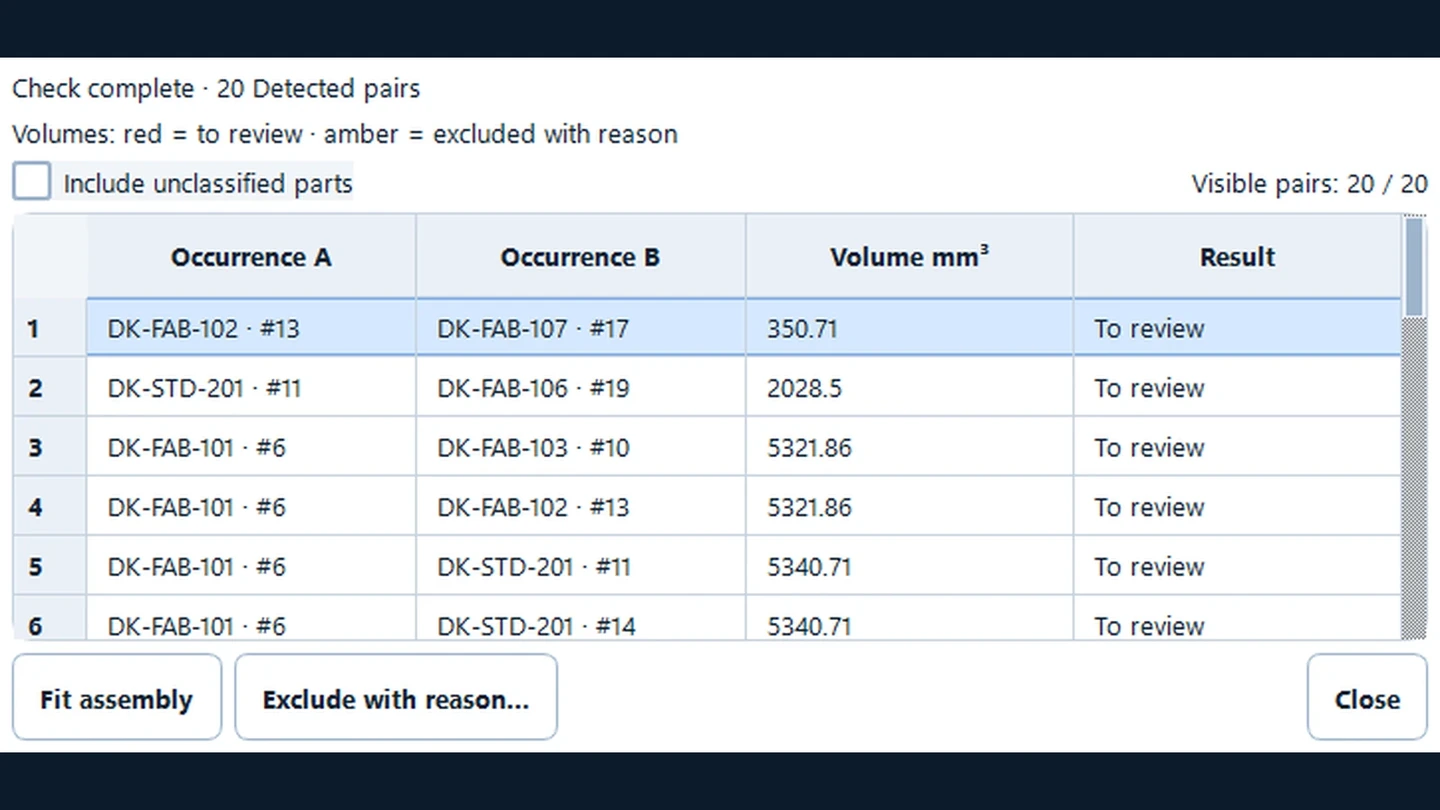
- Follow the four workflow stages and their outcomes. Browse the table, component details, thumbnails, BOM and STEP data, linked files and findings.
- Use the BOM Navigator to open the complete assembly, expand subassemblies and see child components. Move between details, BOM branch and the selected 3D part.
- Search by code or description. Sort and resize columns, filter by category, content and outcome, and reset filters.
- Explore levels and connectors, legend, search, zoom and fit. Hover for details and thumbnails, filter by category and outcome, and focus on issues while retaining branch context.

Results and release
- Review the Quality Score, blocking errors, warnings, compliant items and check status. Reopen the summary and consult the check log and legend.
- Jump from an issue to its row or component, read the cause and suggested action, reload the corrected source and reanalyse.
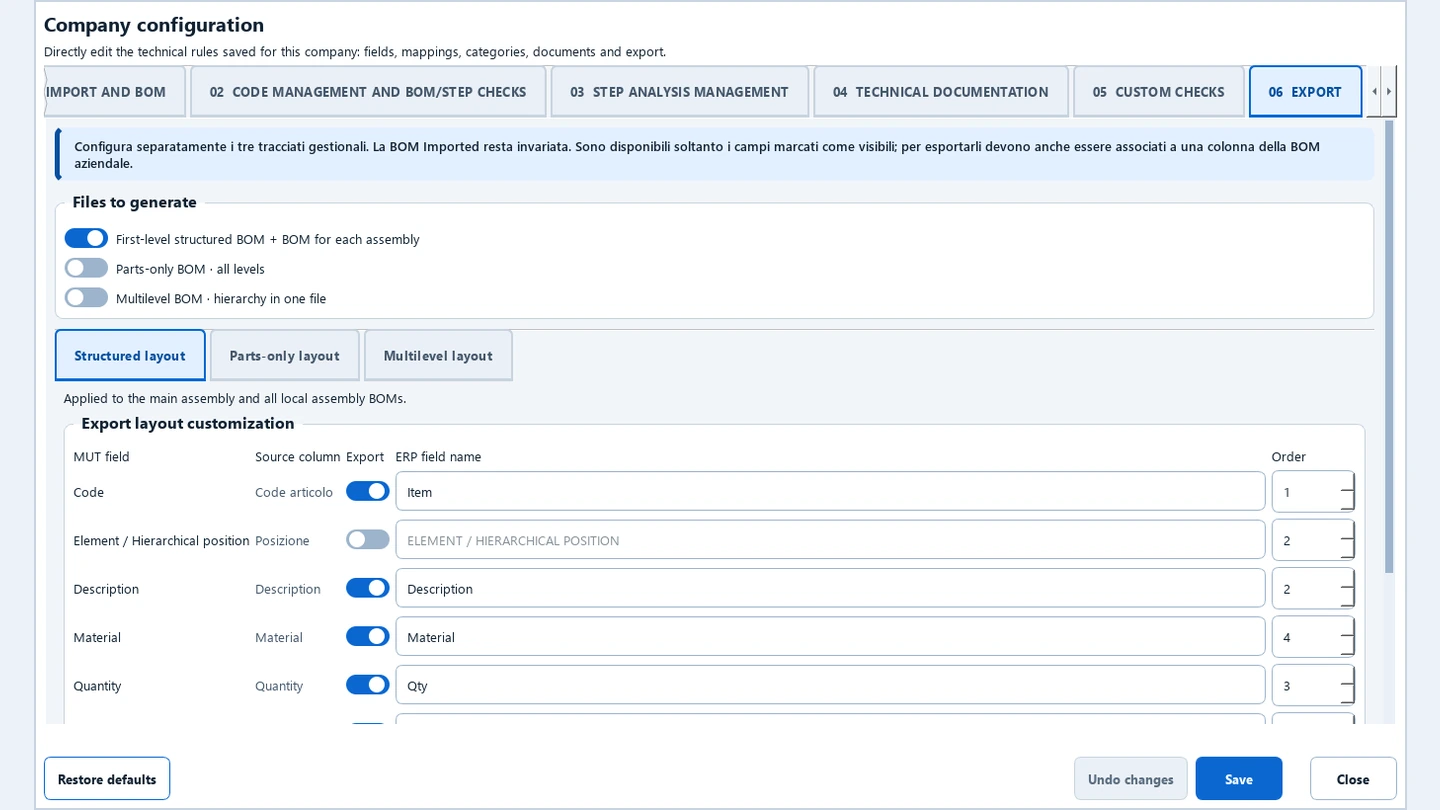
- Generate new Excel files when checks allow release. Configure fields, headers and column order for the ERP.
- Produce first-level structured BOMs and local assembly BOMs, parts-only lists and multi-level exports, with quantities suited to the selected output.
- Generate a PDF report of published BOMs when enabled and find output references in the audit trail.
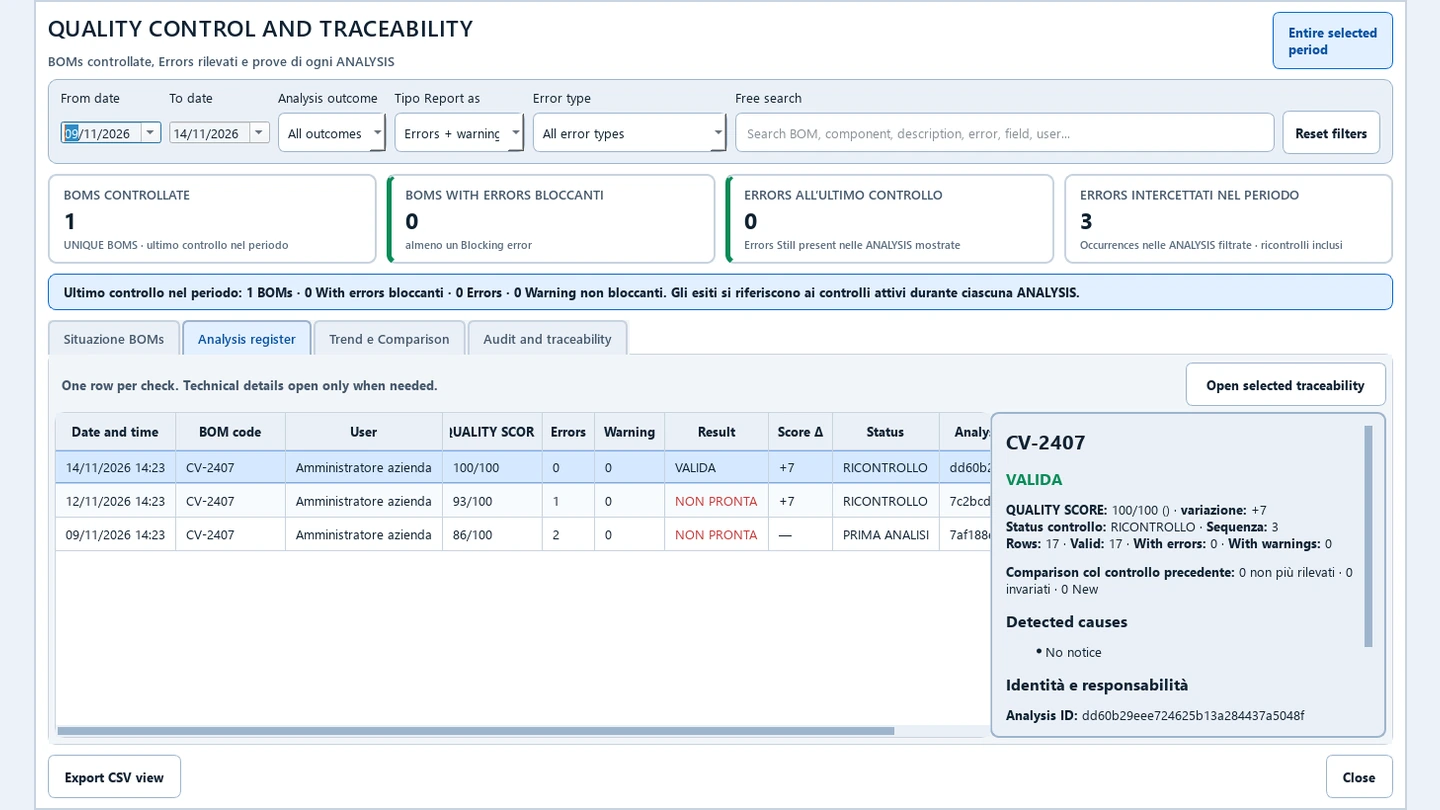
Quality and traceability
- Browse analysis history, statistics, Quality Score trends, the issue register and results by period or job.
- Compare analyses for the same BOM, review changes and relate results to job events. Export the available view.
- Review imports, STEP matching, analyses, exclusions and exports in the local audit trail, with date, user and file references when available.
Administration and workstation
- Set up the company profile, logo, CAD profile and administrator or operator accounts. Export and restore company settings.
- Use authorised advanced maintenance with confirmation. Export a local diagnostics package manually.
- Choose language and light or dark theme. Open contextual help, version details and legal documents.
- Check trial or licence status, copy the installation ID and import the assigned licence file. Analysis, viewing and export run offline.

System requirements
Indicative minimum configuration
- Windows 11 x64, a 4-core x64 processor and 8 GB of RAM.
- Graphics with an OpenGL driver, a 1920 × 1080 display and 2 GB free for installation and temporary files.
Recommended configuration
- Up-to-date Windows 11 x64, 6 or more CPU cores, 16 GB of RAM and an SSD. Consider 32 GB of RAM for heavy assemblies.
- Dedicated GPU with up-to-date OpenGL drivers and a 2560 × 1440 display.
Resource usage depends on BOM size, STEP geometry and enabled checks. The installer includes the runtime. A connection is required to download the trial.